A MAC address is a unique ID given to a device's network connection for communication on a local network. MAC randomization is a privacy feature used in wireless networking to prevent devices from being tracked by their MAC address.
The MAC address itself doesn't track devices, but third parties can use it to track when the device connects to different Wi-Fi networks. Since the MAC address is a unique identifier, network operators or third parties could potentially monitor where a device goes by observing its MAC address on various networks. This is why MAC randomization prevents devices from being easily tracked.
MAC randomization helps protect user privacy by periodically changing the MAC address when connecting to different networks, making it harder for third parties to identify and track devices across networks.
There are typically two types of MAC addresses that support randomization:
- Permanent MAC Address: The fixed, factory-assigned MAC address of the device.
- Randomized MAC Address: A dynamically generated address used during network scanning and sometimes when connecting to networks.
The Benefits of MAC Randomization
MAC randomization enhances user privacy and security when connecting to Wi-Fi networks. Traditionally, devices use a fixed MAC address, a unique identifier that allows network operators and third parties to track a device's movement across different networks. By enabling MAC randomization, devices generate a new, temporary MAC address for each connection or network scan, making it more difficult for external entities to monitor user behavior or link a device to a particular identity. This feature offers several key benefits in protecting users from tracking and malicious activities.
- Enhanced privacy: Devices can avoid being identified and tracked by generating a new MAC address for each network or connection attempt.
- Security improvements: It reduces the chances of MAC address spoofing and tracking by malicious users or advertisers.
However, MAC randomization can sometimes cause issues with networks that rely on static MAC addresses for device identification, such as enterprise networks or those using features like MAC filtering.
Administrators may need to disable or manage this feature in mobile device management (MDM) or enterprise environments, depending on their network policies. By default, most modern devices have MAC address randomization enabled to enhance privacy. However, in some networks, such as those that use MAC address filtering or require static MAC addresses for device identification, this feature may need to be turned off for proper functionality.
How to Manually Disable MAC Randomization
To disable MAC address randomization manually on Android devices (for Android 12 or higher), follow these steps:
- Open Android Settings on the device.
- Navigate to Network & Internet:some text
- Tap on "Wi-Fi".
- Select the Wi-Fi Network:some text
- Find the specific Wi-Fi network for which you want to disable MAC randomization.
- Tap on the network name (or hold it and tap "Modify").
- Advanced Options:some text
- Scroll down to find "Privacy" or "MAC Address" settings.
- It may be labeled as "Use randomized MAC" or similar.
- Choose "Use Device MAC"some text
- Tap the privacy or MAC address setting and change it from "Randomized MAC" to "Use Device MAC."
- Save Changes and reconnect to the network.
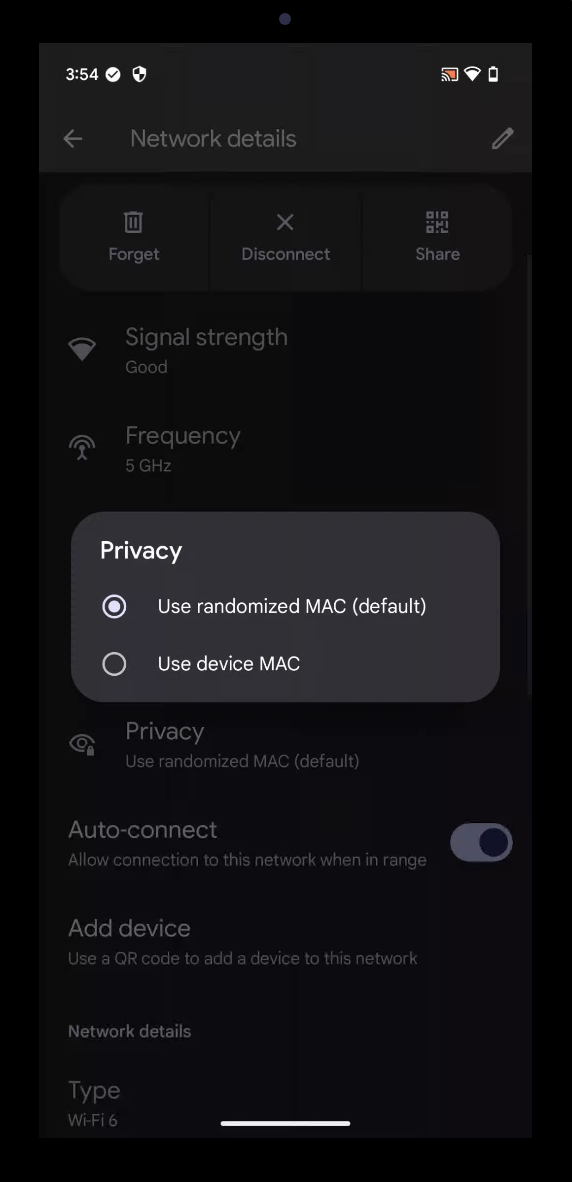
This will disable MAC randomization for that specific network, ensuring the device always uses its fixed MAC address when connecting.
For environments where you need to do this at scale, an MDM platform like Esper can help automate the process in a few steps.
How to Disable MAC Randomization Using Managed Config on Esper
💡Note: Currently, it’s only possible to disable MAC randomization on Zebra and Lenovo devices in bulk on Esper. We’re always testing more OEMs to add this list. If you're looking for specific hardware, please feel free to contact us.
To disable MAC randomization on Zebra devices, you can use Managed Configuration with the Legacy Zebra OEMConfig app. This allows administrators to directly configure device settings, including MAC randomization, without manually adjusting each device. Here's how to do it:
1. Navigate to the Managed Configuration Setup:
- Access the Google Play Store console for the device management platform that supports managed configurations for your devices.
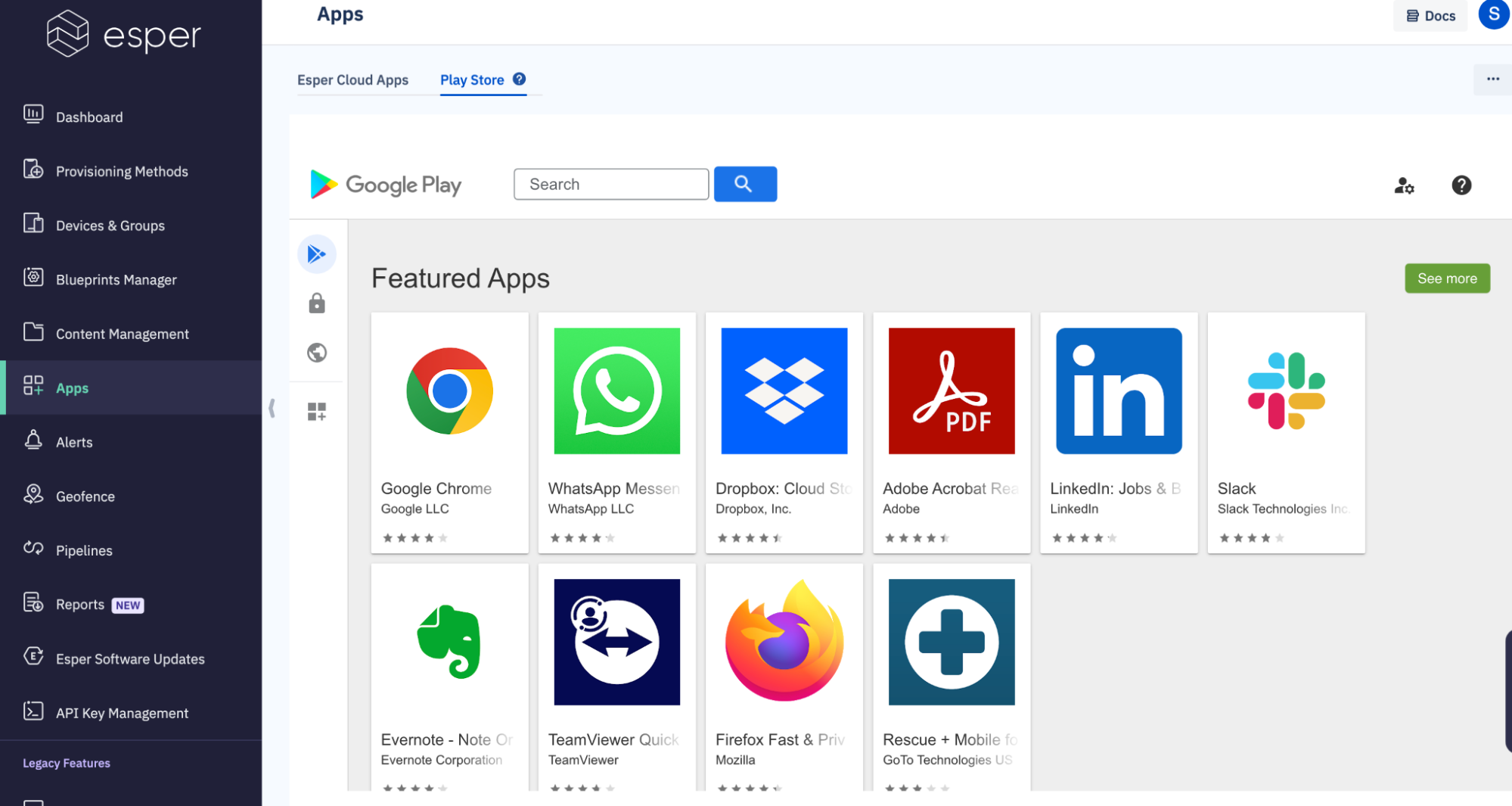
2. Search for the Zebra Legacy OEMConfig App:
- Search for the Legacy Zebra OEMConfig app for Zebra devices in your management console (such as the Google Play Store or another app repository).
- Approve the app for use and proceed to configure it.
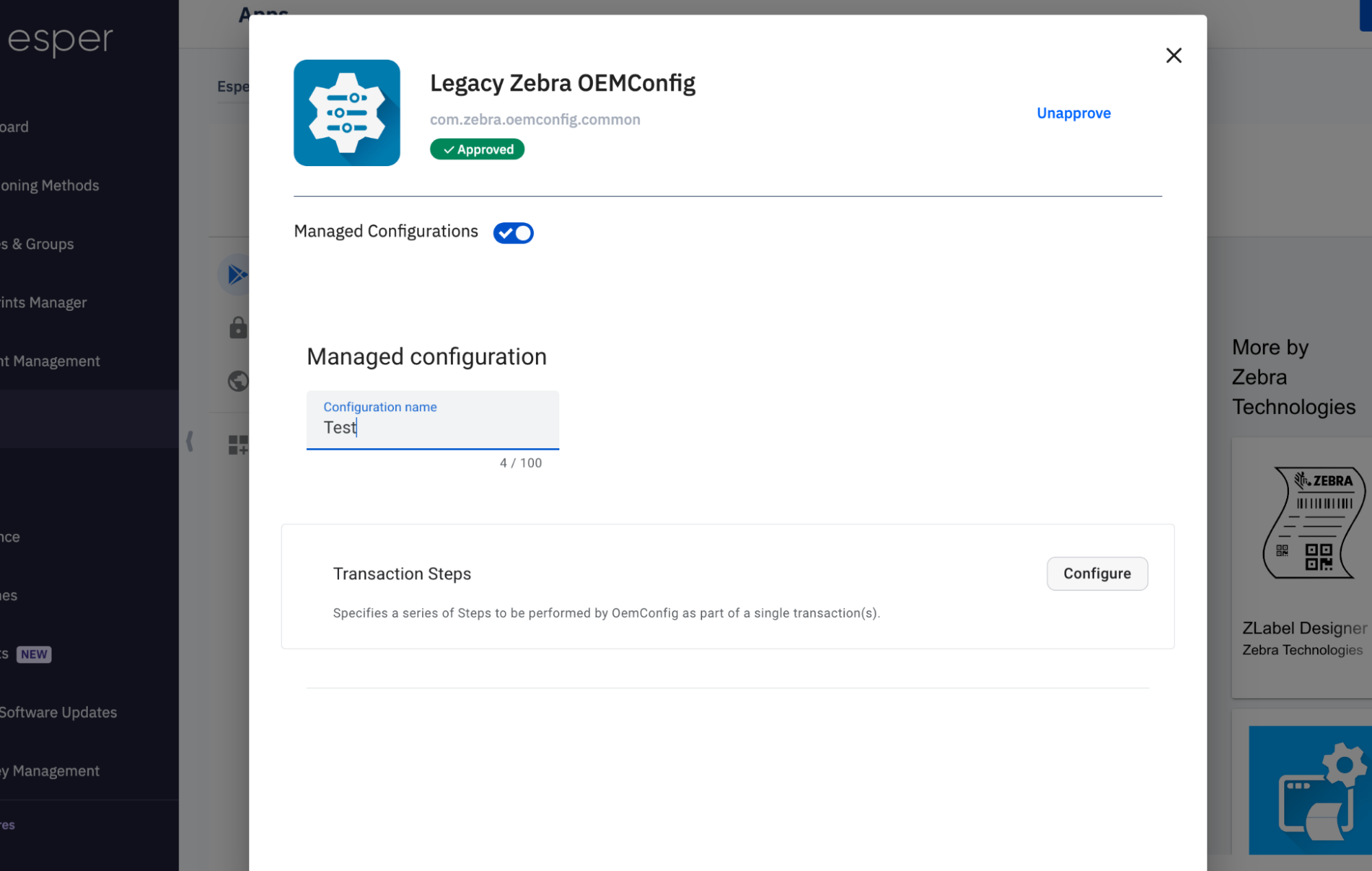
- Once approved, click on Managed Configuration.
- Add a configuration name (for example, "Test") and click on Configure.
3. Modify Advanced Options:
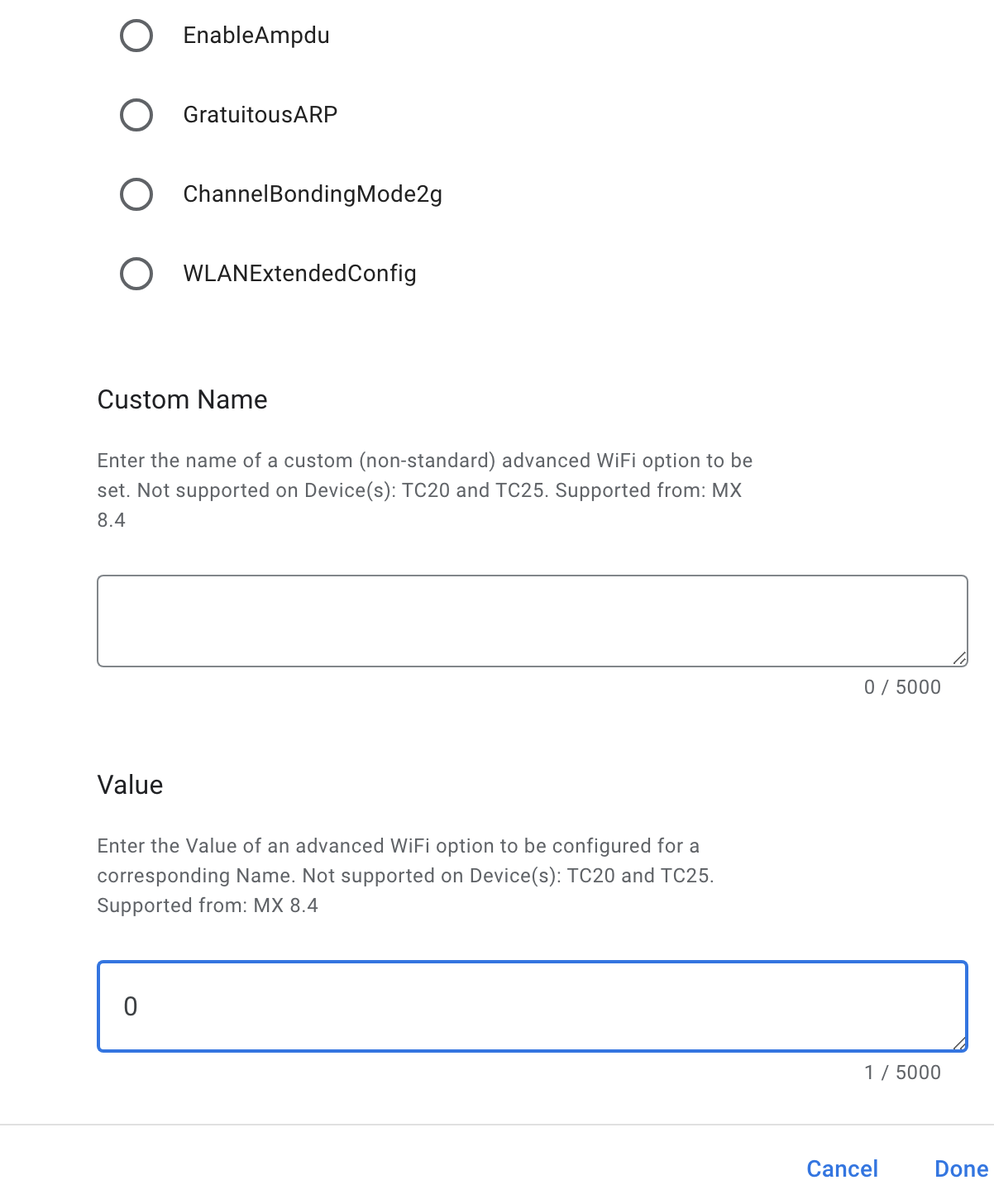
- In the configuration settings, search for Advanced Options.
- Select MACRandomization and set the value to 0 to disable MAC randomization.
- Where:some text
- 0 = Disable
- 1 = Enable
4. Install the App on the device to apply the changes.
5. Verify the Configuration:
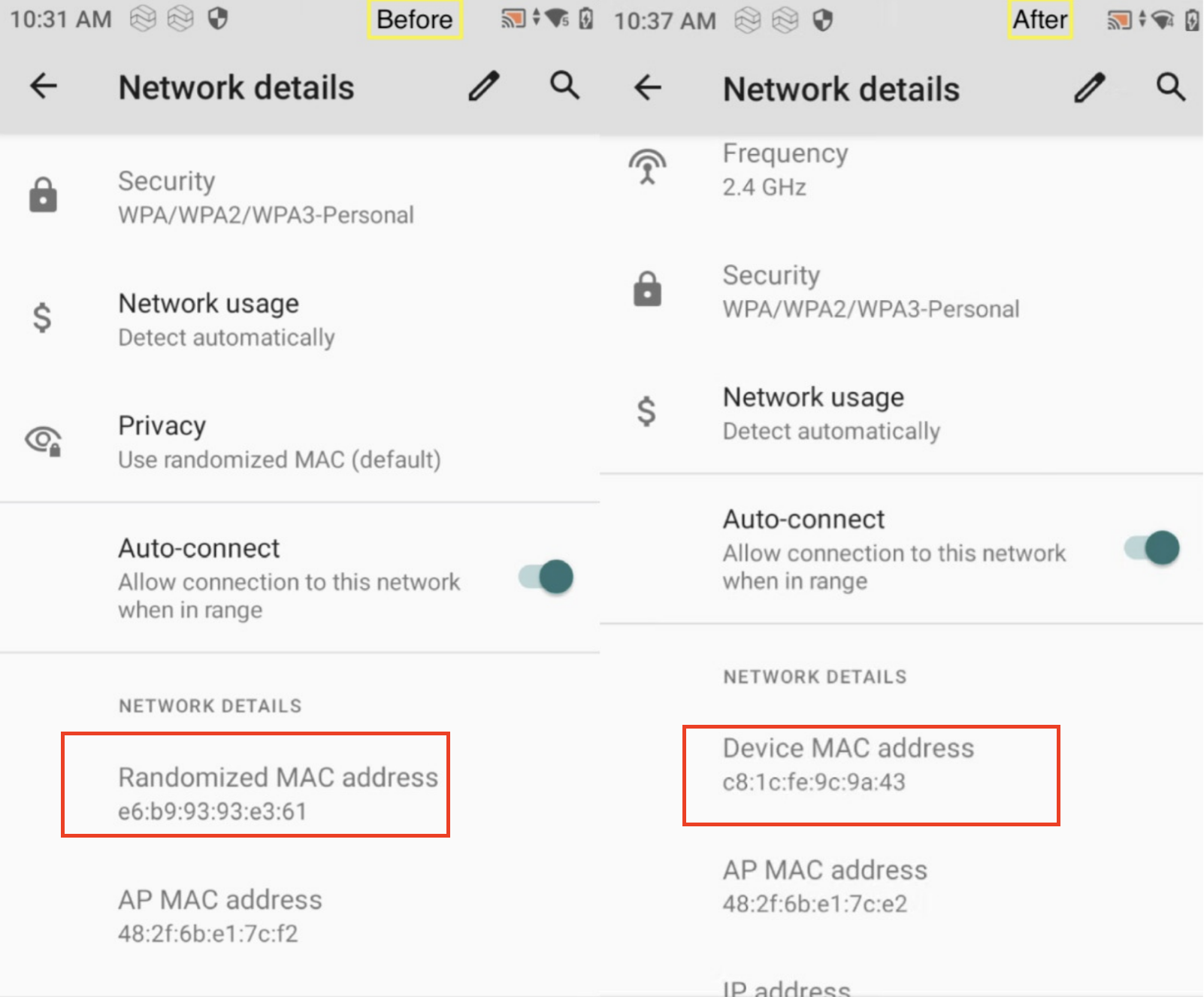
- Go to the device's Wi-Fi settings and check the network details.
- The randomized MAC address should be replaced with the device's actual MAC address, confirming that you’ve successfully disabled MAC randomization.
Esper also simplifies this process on Lenovo devices by allowing administrators to disable MAC address randomization at scale across thousands of devices using Blueprints. With this approach, you can create and apply a blueprint to configure network settings, including the option to turn off MAC randomization, ensuring consistent behavior across all managed devices. You can do this easily without needing manual intervention on individual devices, saving time and effort for IT teams.
For more detailed steps on how to configure this, please refer to the Blueprints setup guide.