
Managing a fleet of devices can feel overwhelming without a structured system. With Esper, organizing your devices into groups and subgroups can streamline operations, simplify management, and deliver measurable business value. This guide will show you how to effectively organize devices on the Esper platform by creating device groups and subgroups.
What Are Groups and Subgroups?
A group (or parent group) is a collection of devices categorized based on a specific criterion, such as location, function, or business unit. A group acts as the primary 'container' for devices and subgroups, allowing centralized management and policy enforcement.
A subgroup is a division within a parent group that further categorizes devices for better control and organization. Subgroups inherit configurations and policies from their parent group, ensuring consistent device management.
Why Device Grouping Matters
- Efficient Management: Easily apply policies, apps, or settings to specific groups.
- Enhanced Monitoring: Track devices based on roles, locations, or functionalities.
- Streamlined Operations: Minimize manual overhead and boost productivity.
What Can You Do with Esper's Device Grouping Feature?
- Create logical groupings based on criteria like location, department, or use case.
- Apply configurations consistently at the group or subgroup level.
- Gain insights into device performance or issues within specific groups.
Real-World Example: A Retail Business
Imagine a retail chain with multiple outlets nationwide. Each store uses devices for customer checkout, inventory, and customer engagement. Here’s how grouping and subgroups can simplify management:
- Top-Level Group: Group all devices across stores (“Retail Chain Devices”).
- Parent Groups by Region: Separate devices into location-based groups (“North Region” and “South Region”).
- Store-Level Subgroups: Create subgroups for individual stores within regional parent groups (“Store A,” “Store B”).
- Functional Subgroups: Create subgroups for specific device types within each store (“Point of Sale Devices” and “Inventory Scanners”).
With this structure, the retailer enables:
- Simplified Policy Deployment: Roll out updates or patches to specific subgroups (e.g., “Point of Sale Devices” only).
- Faster Issue Resolution: Pinpoint and resolve issues in a specific store or region.
- Operational Insights: Analyze data by group or subgroup for informed decision-making.
- Scalability: Seamlessly onboard new devices into existing groups or subgroups as the business grows or easily move devices between groups, such as from Store A to Store B.
Enabling Growth at Scale with Esper Device Grouping
Esper’s intuitive console and device APIs offer:
- Bulk Device Assignment: Reduce manual effort when assigning devices.
- Quick Deployments: Apply policies and apps to groups with just a few clicks.
By leveraging these features, businesses save time, cut costs, and enhance device performance.
How to Create Device Groups and Subgroups in Esper
Create a Group
1. Navigate to the Esper Console: Go to the "Devices & Groups" section.
2. Add a New Group: Click “Add” and select “New Group.”
3. Enter Group Details: Fill in the group name, description, and other details. To set an optional “Group Image,” upload an image (must be .jpg or .png and at least 180x180 px) or select a preset from the Esper library.

4. Choose Parent Group: Select a parent group or directory for this group from the dropdown.

5. Create the Group: Click “Create.” You will be navigated to the new group, where you can add devices or subgroups.
Note: Groups can only be deleted if they contain no onboarded devices. Use the ellipsis (‘...’) menu in the group view to delete a group.
Add Devices to a Group
1. Select one or more devices.
2. Click the checkbox next to the devices you wish to move.
3. Select “Move Devices” from the “Actions” dropdown menu.

4. Choose the destination group and click “Move Devices.”

5. A success message will confirm the operation.
Create a Subgroup
1. Navigate to the desired group.
2. Click “Add” and select “New Subgroup”.
3. Enter a subgroup name and description.
4. Click “Create” to finalize.
Move a Group
1. Navigate to the group and click the ellipsis(...) menu.
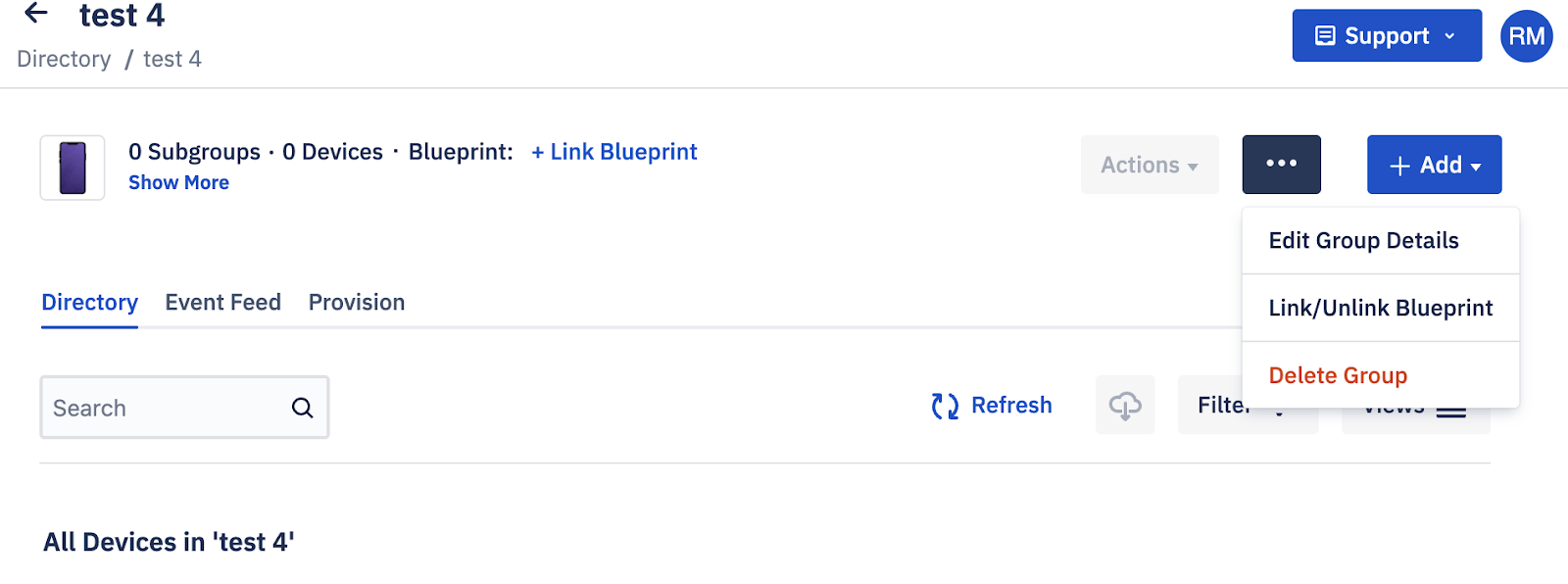
2. Select “Edit Group Details.”
3. Select the destination parent group using the dropdown menu.

4. Click “Update” to move the group.
5. A success message will confirm the change.
What Happens When a Parent Group is Merged, Deleted or Converged?
- Merging a Parent Group Merging a parent group with another group moves its subgroups under the new parent group while retaining the existing structure and configurations of subgroups.
- Deleting a Parent Group A parent group cannot be deleted if it contains onboarded devices. If the group is removed, its subgroups are deleted, unless reassigned to a different parent group beforehand.
- Converging a Parent Group All the devices in the parent group will be converged, and all the devices in the subgroup will also be converged.
Conclusion
Grouping and organizing your device fleet in Esper isn’t just about tidiness — it’s a strategy to improve operational efficiency, scalability, and control. Nested subgroups provide the granularity needed for targeted management, offering unmatched flexibility for ultra-large fleets.
If you need to organize a large number of devices on Esper, we can help. Check out our Help Center or get in touch with the Esper support team today.